XTRAC User Guide

|
XTRAC User Guide |
|
Use the Communications section of the Work Item Preview pane to create new customer communications, and to view or edit existing communications.
To access the Communications section, click  in the Work Item Preview pane.
IMPORTANT: Working with Communications requires the following are installed on your computer:
If the Communications component is not working for you, contact your XTRAC administrator to ensure that these required packages are correctly installed, and that you have the applicable security functions.
To add a communication to a work item:
| 1. | Select a work item from a Search Results list or your Watch List. |
| 2. | In the Work Item Preview panel, click  to access the Communications section. to access the Communications section. |
| 3. | In the Communications section, click  . . |
The Communications page opens. The Communications page displays a number of templates that you can use to standardize the content and format of communications with customers.
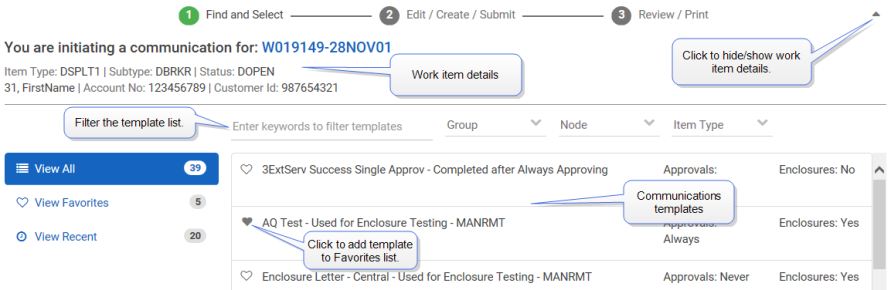
 to hide or show the work item details.
 to add a template to your Favorites list (
  = added to Favorites). Click to remove a template from your Favorites list ( = removed from Favorites).
| 4. | From the Template List, select the template you want to use in your communication. |
The Communications Editor opens at the bottom of the page.
| 5. | In the Communications Editor, use the editing tools to replace "Type your text here" with the content of your communication. |
| 6. | In the Memo field, enter an optional memo. |
Note: Memos are required only on canceled communications. If the communication is canceled, add a memo describing why it is being canceled.
| 7. | Take action on the communication by clicking the appropriate action button. |
Note: The action you can take on a communication depends on the type of template you selected. For example, if you select a template that requires an approval, the available action could be Submit for approval. If the communication does not require an approval, the available action could be Create or Print.
The action you can take on an existing communication that you are editing depends on its current status. For example, if the status is Submitted for Approval, the actions you can take are Edit, Reject, Approve, and Cancel. If the status is Printed, the actions are Reprint and Copy.
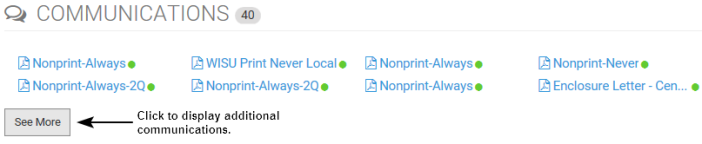
If the selected work item has communications attached to it, they are listed in the Communications section. Click a link in the list to view that communication. The file format and the browser you are using determines how the communication will be opened.
For example, if you click a PDF link, you may be prompted to open or save the file to your hard drive, or the file may open automatically in the browser's PDF viewer.
If there are more communications associated with the work item than are currently displayed, click the See More button.
XTRAC Community |

|